Tenant guide
Paying rent and getting repairs done
Your landlord uses Tethered Properties, and you have your own private tenant portal. Open it from the link in your email. It's the same page every month, so bookmark it.
How to pay rent
Pay online, or the way you already pay your landlord. Your money always goes straight to them.
See what's due
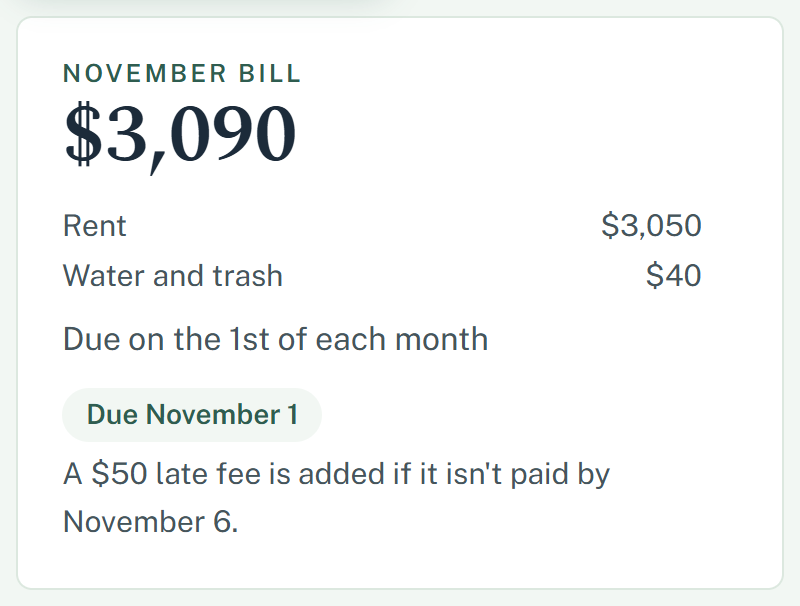
Open your portal. At the top you'll see this month's bill, when it's due, and any extras like water and trash.
Pay online, by bank or card
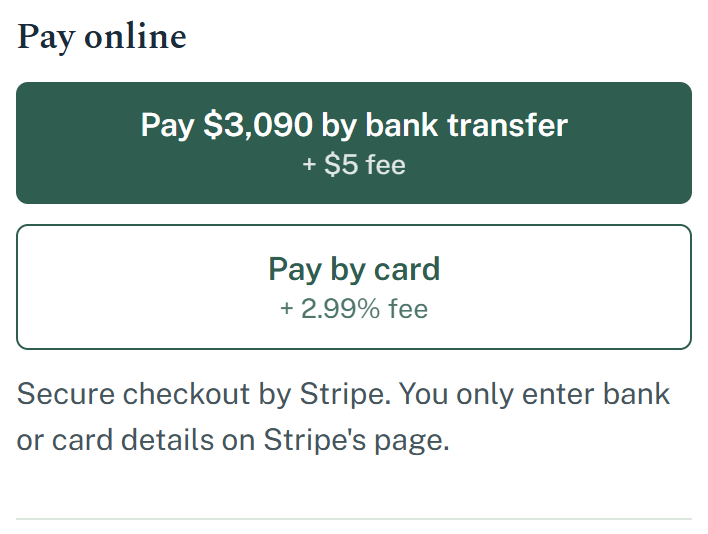
If your landlord takes online payments, tap Pay by bank transfer or Pay by card. You'll finish on Stripe's secure page, and you only enter your bank or card details there.
The small fee is shown on the button before you pay.
Or turn on autopay
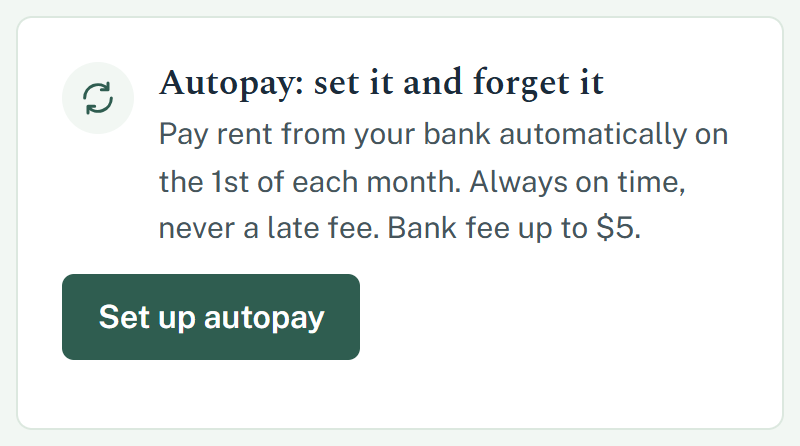
Tap Set up autopay and connect your bank once. Rent is paid automatically on the due date each month, so it's never late. You can turn it off from the portal any time.
Or pay your landlord directly
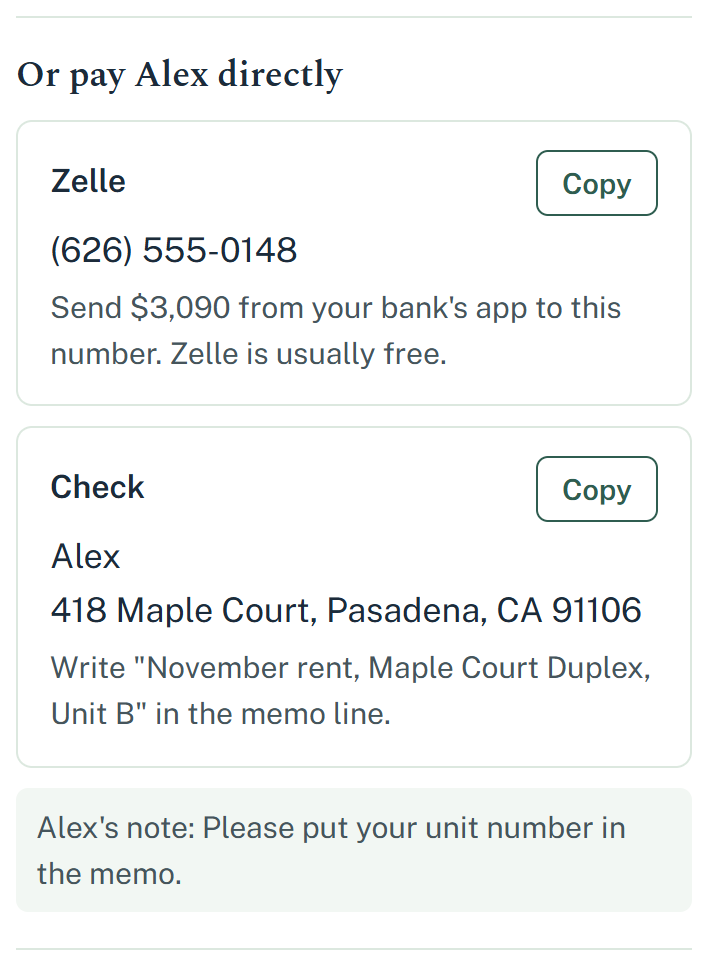
Your portal shows the ways your landlord takes rent directly, like Zelle, Venmo or a check, with a Copy button for each.
Only pay to the details shown in your portal. If anyone asks you by text, email or phone to pay somewhere else, check with your landlord first.
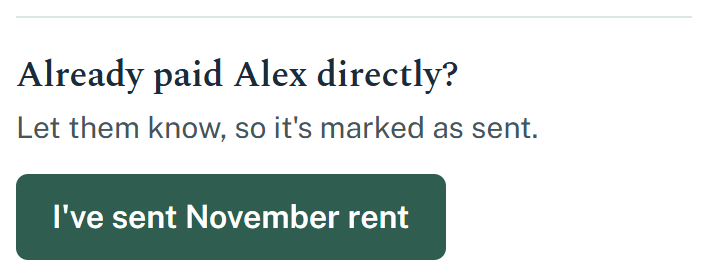
Paid directly? Let them know
After you send it, tap I've sent [month] rent and pick how you paid. Your landlord gets a note, and your portal shows it as sent until they confirm it.
How to ask for a repair
Tell your landlord what's wrong, add photos, and follow it from start to finish in one place.
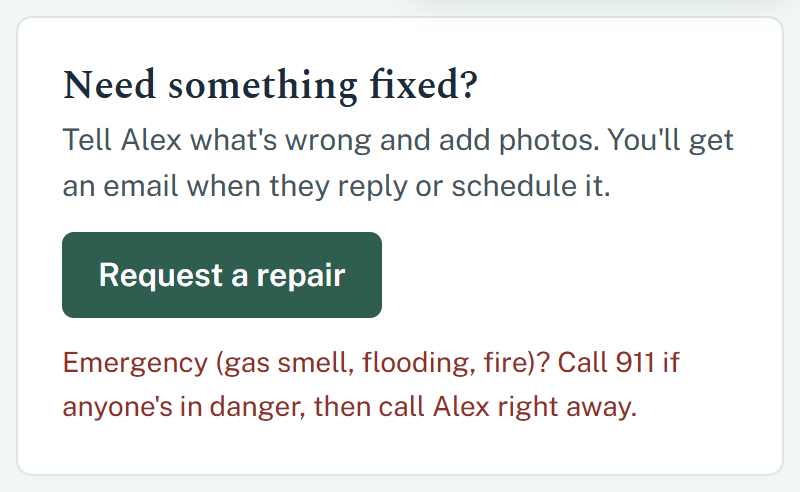
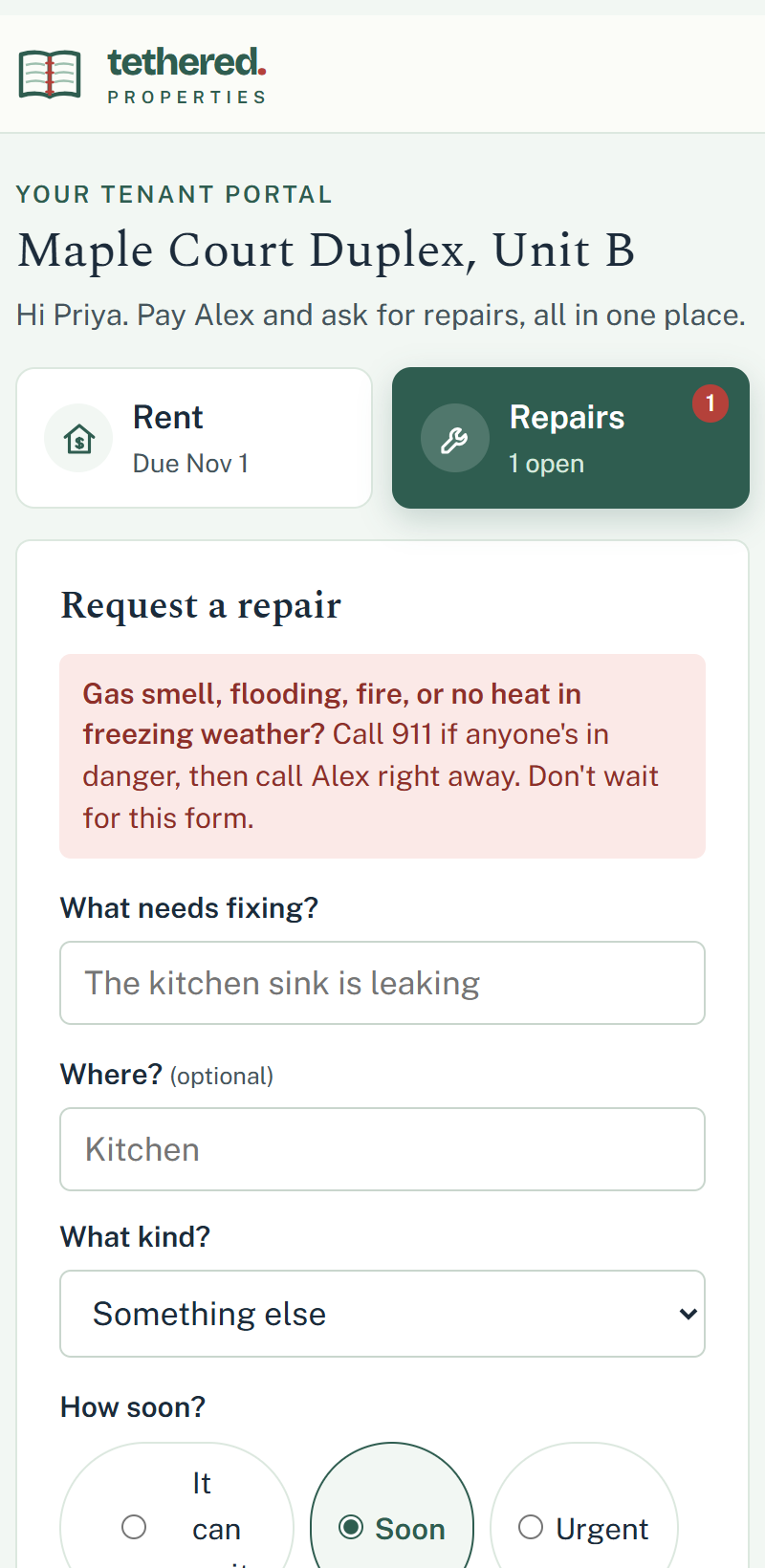
Emergency? For a gas smell, flooding, fire, or no heat in freezing weather, call 911 if anyone's in danger, then call your landlord right away. Don't wait for the form.
Open Repairs
In your portal, tap Repairs, then Request a repair.
Tell them what's wrong
- What needs fixing, in a few words (for example, "The kitchen sink is leaking").
- Where it is, and how soon it needs attention: it can wait, soon, or urgent.
- Photos help a lot: add up to 5.
- Say whether it's OK to come in if you're not home, and the best times to reach you.
Then tap Send to [your landlord]. They get it right away.
Follow along
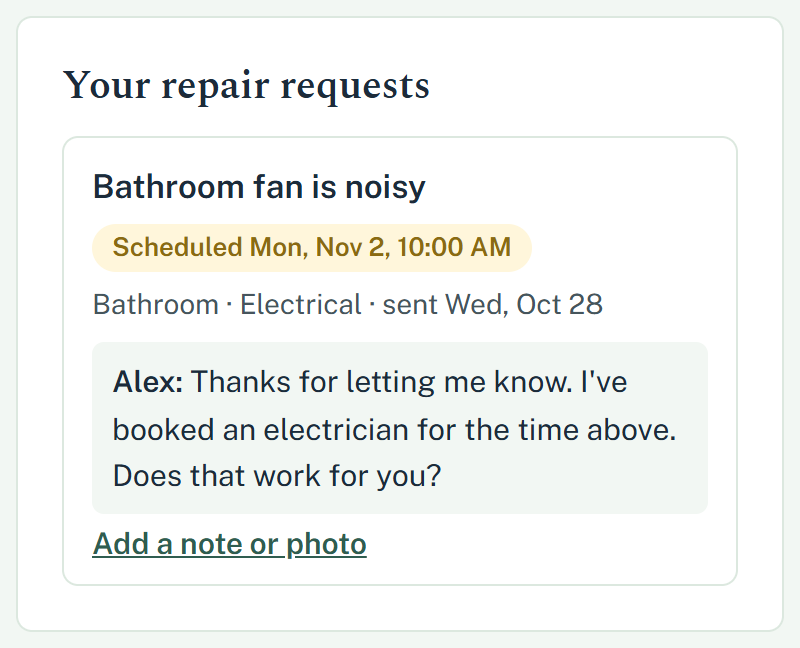
Your request stays in your portal with its status, from received to scheduled to done. Your landlord's replies show up right there, and you'll get an email when something changes.
Need to add something? Tap Add a note or photo.
Questions
I can't find my portal link
It's in the email from your landlord with the subject about your tenant portal. Can't find it? Ask your landlord to send it again; they can resend it in a click.
Is paying online safe?
Yes. Online payments are handled by Stripe, a payment company used by millions of businesses. You enter your bank or card details only on Stripe's page, and Tethered Properties never sees them.
Is there a fee?
Paying your landlord directly, like by Zelle or check, has no Tethered Properties fee. Paying online can have a small fee, shown on the button before you pay.
Who sees my repair request?
Your landlord, and anyone they've asked to help with the property. Your photos and notes stay with the request.
Something's wrong with my bill
Reply to your landlord's email or contact them directly. They can correct it, and your portal updates right away.